
Choose the format
Select the document or preset first so size and crop match the expected output.
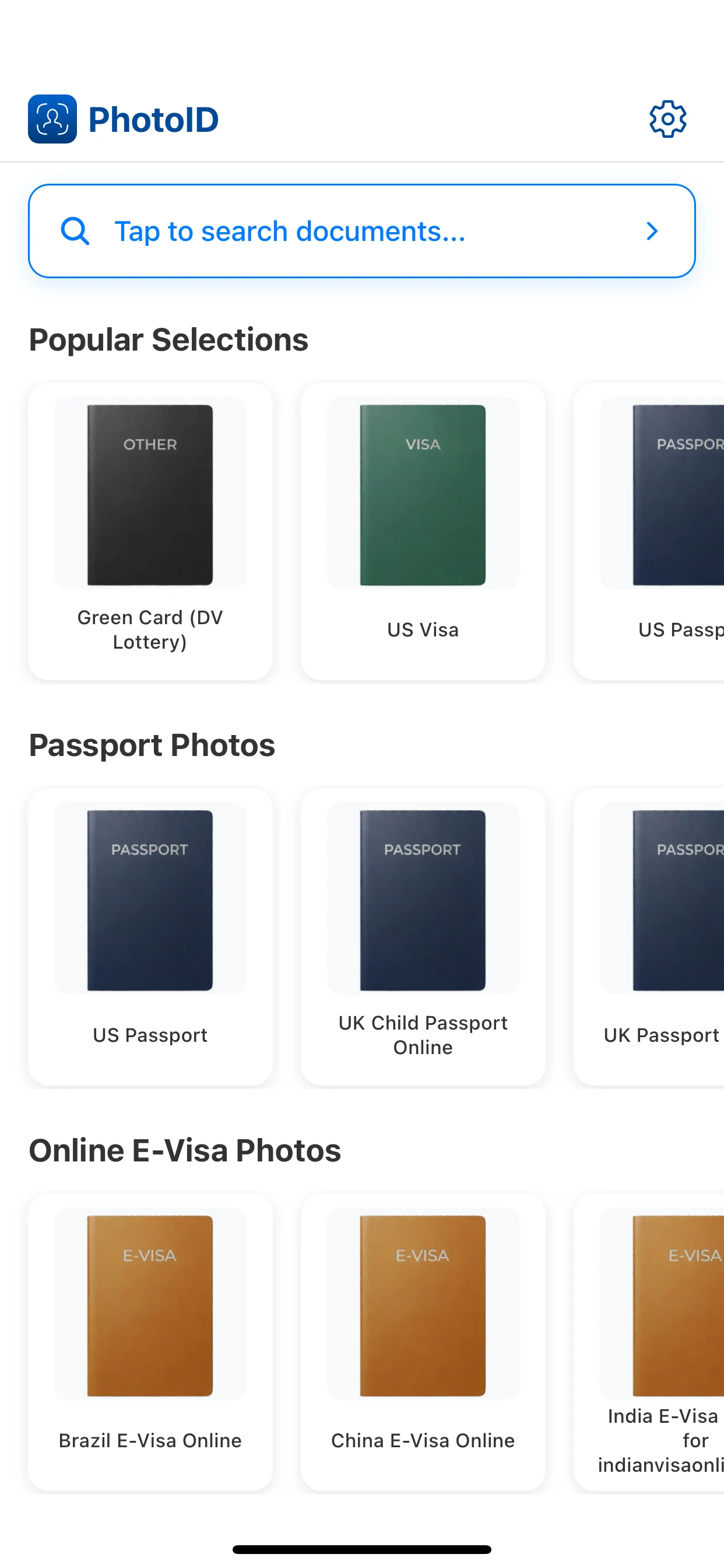
Choose your document, take a photo, check common issues with AI, and export a digital or print-ready result.
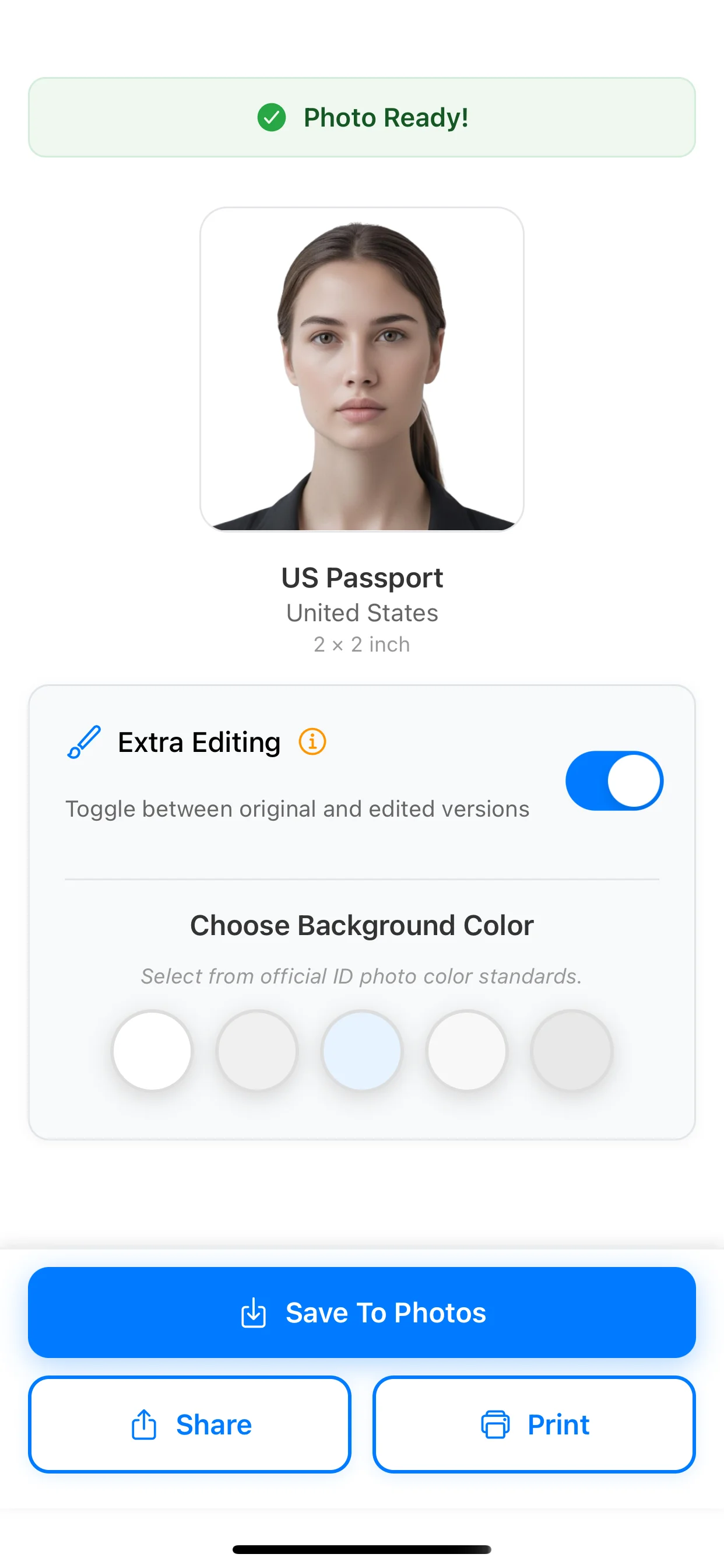
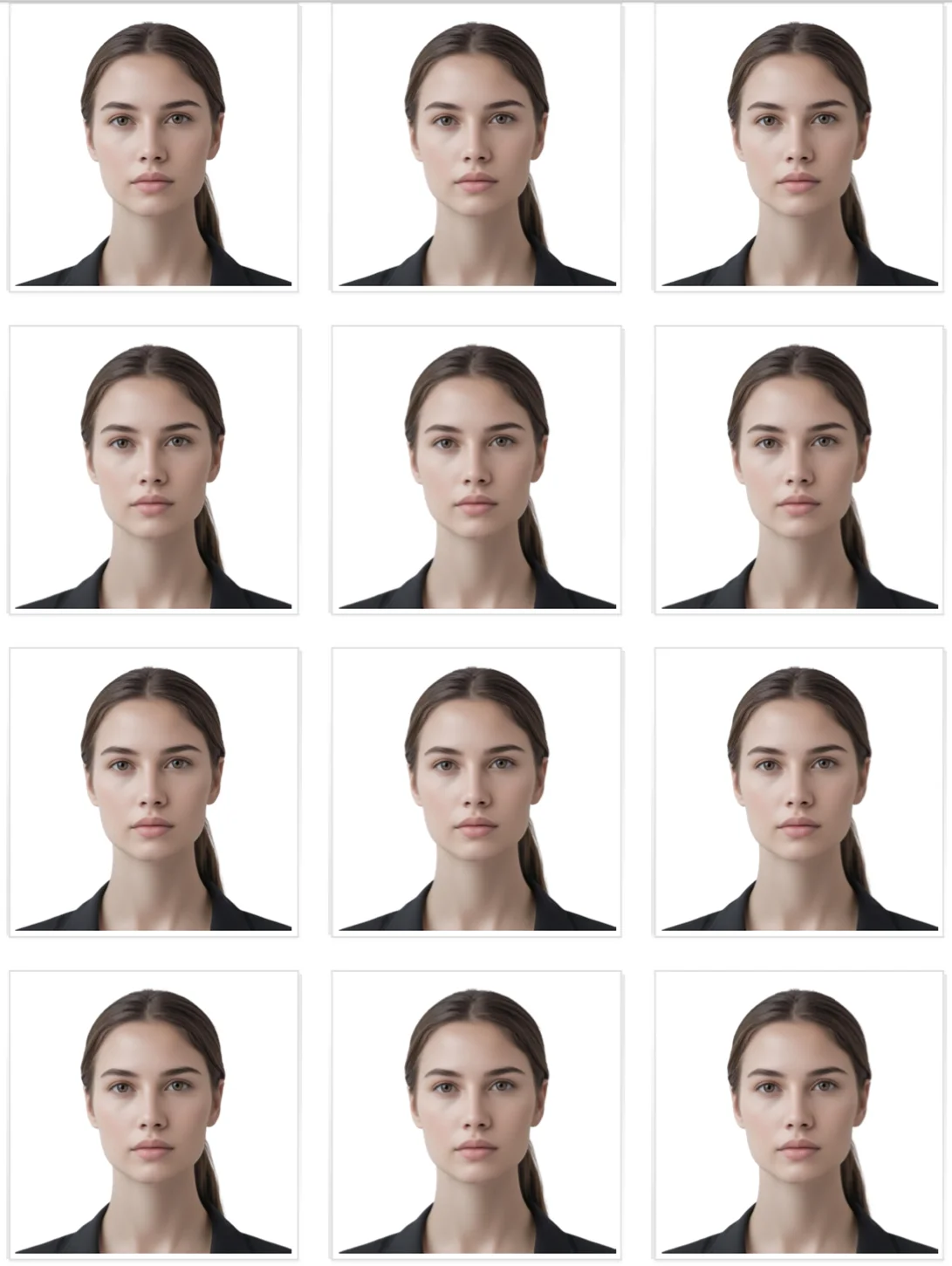
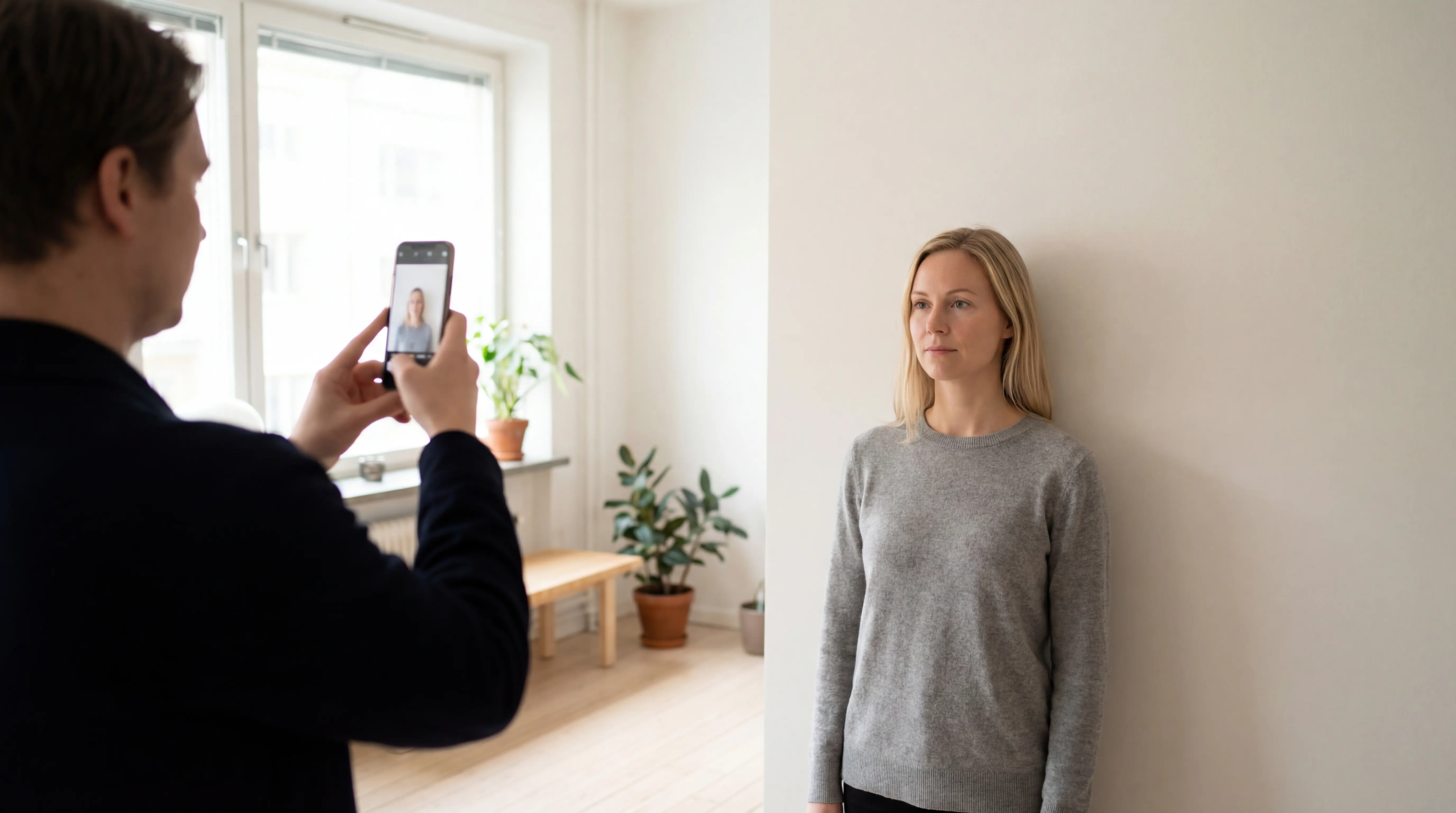
Choose the document preset first, then use PhotoID's built-in camera with the phone at eye level, even light, and a plain background. Continue in the same app flow for AI checks and export.
Choose the right format, take the photo inside PhotoID, check common issues, and export the result.
Select the document or preset first so size and crop match the expected output.
After taking the photo in PhotoID, prepare its size and framing for the selected document.
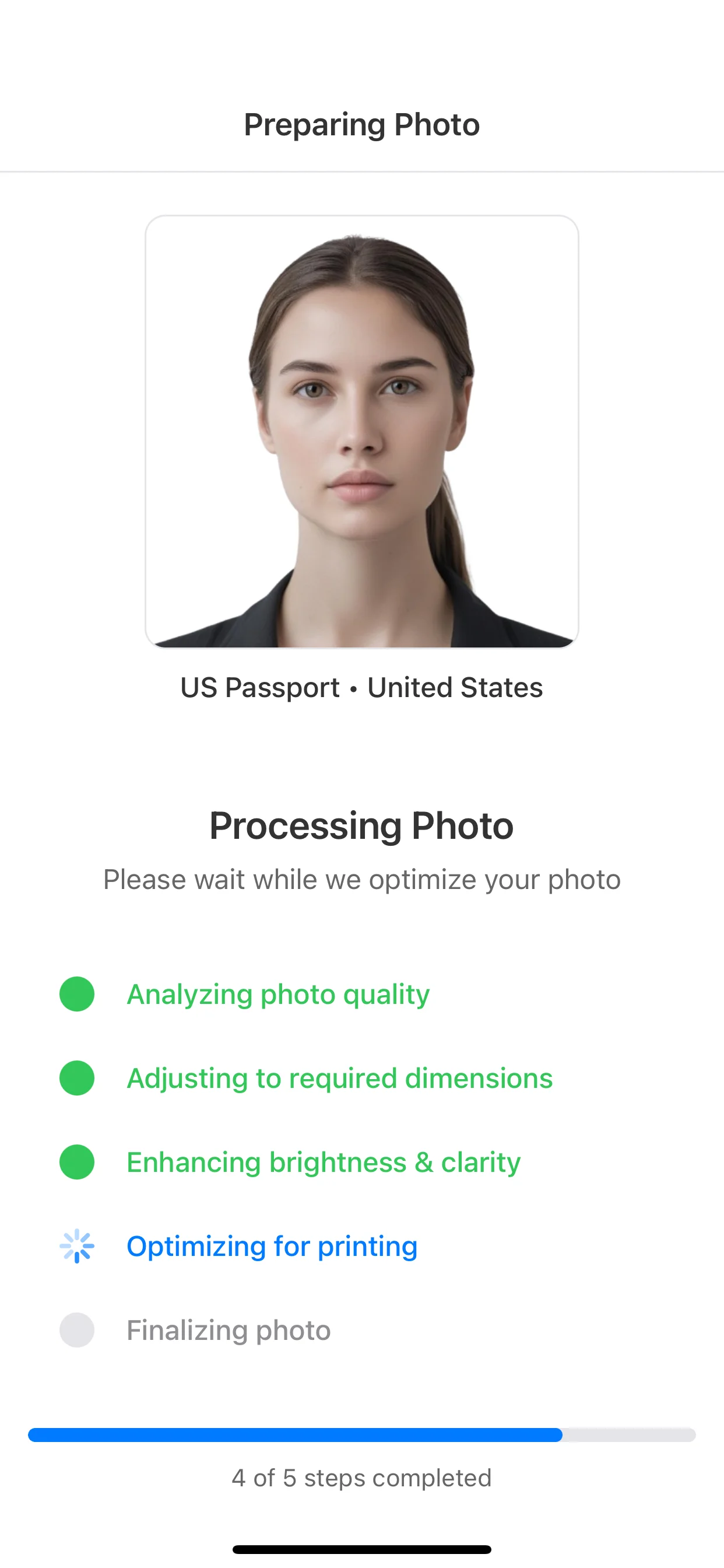
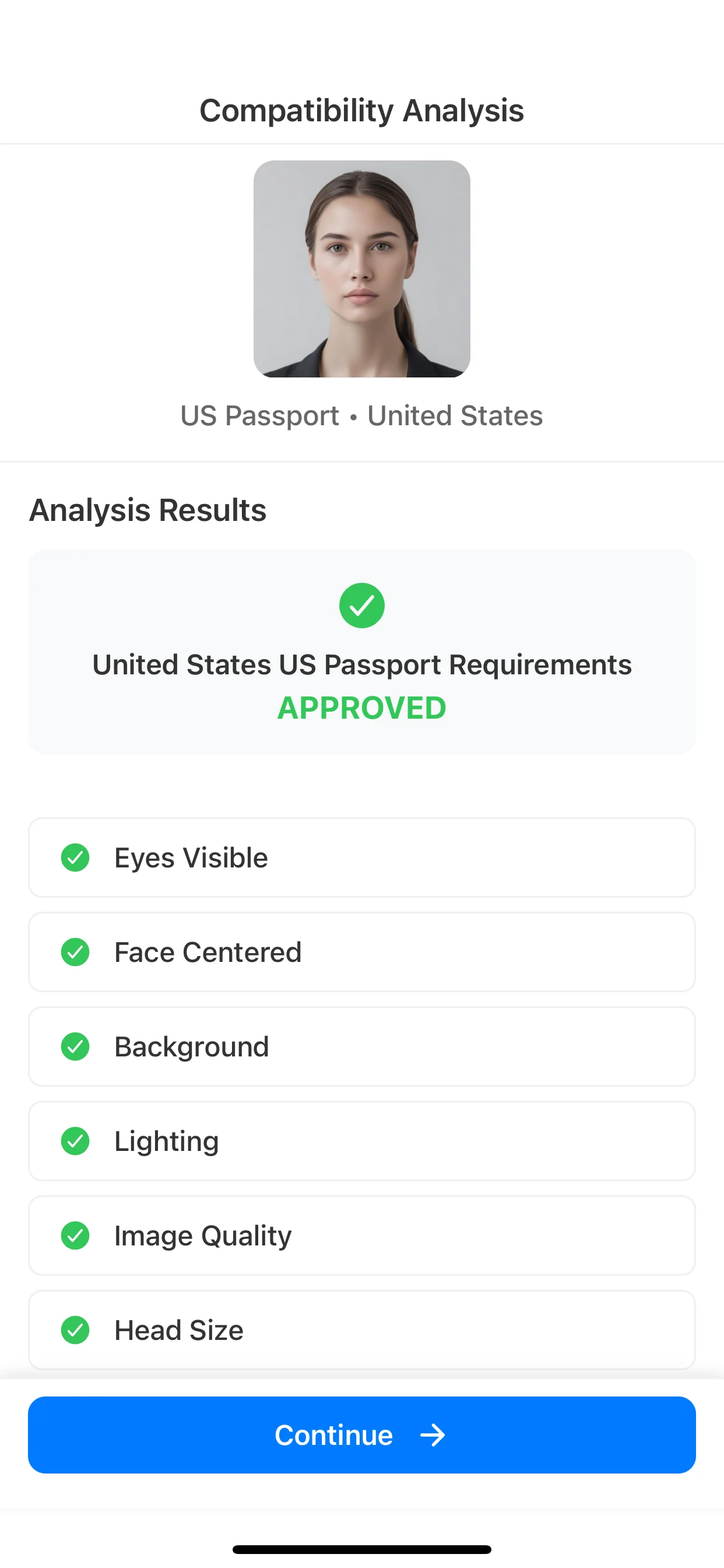
Review common issues such as background, lighting, crop, and visual quality.
Use the result for online submission or print, depending on the document.
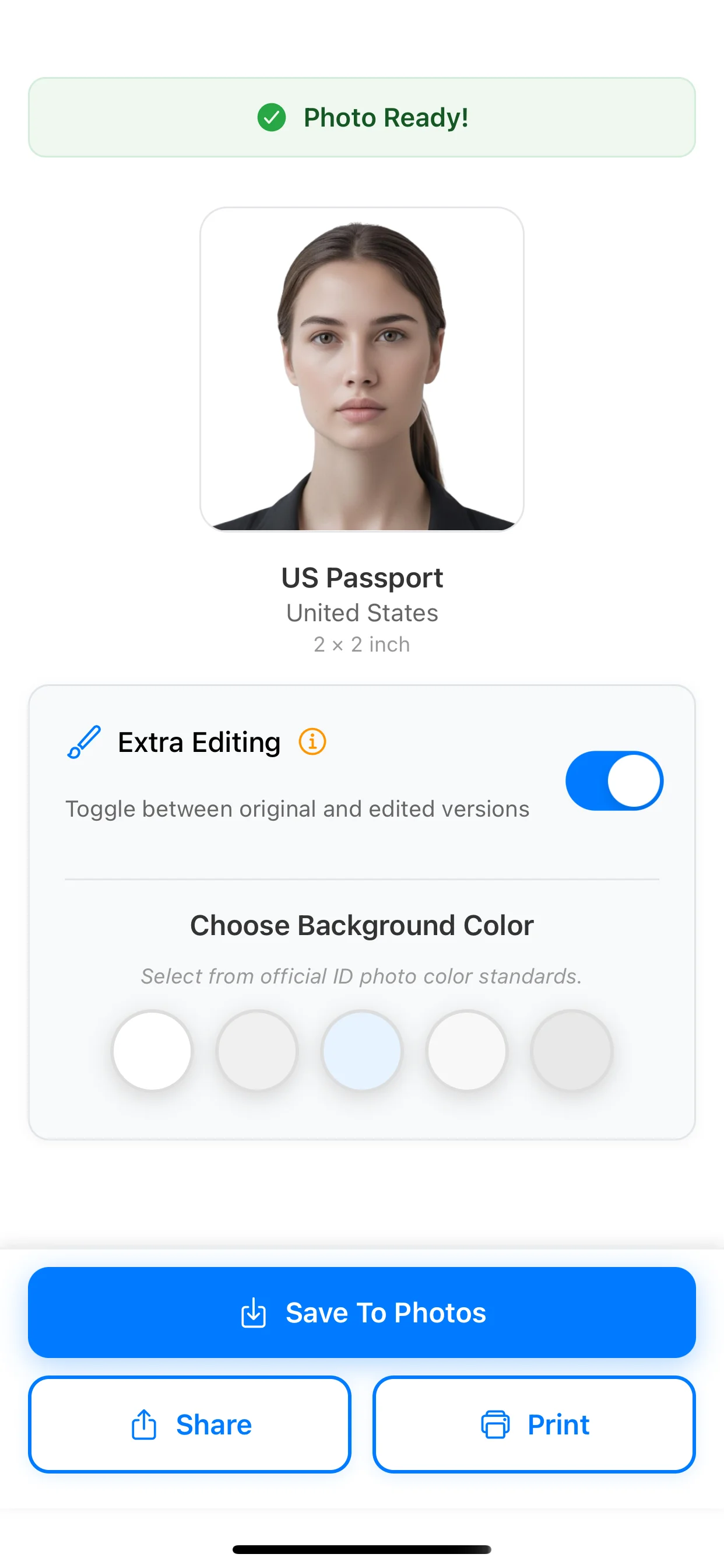
PhotoID does not replace an official authority. The app helps catch common technical photo issues before export.
Review whether the background looks plain, light, and free from obvious shadows or clutter.
Check that the face is centered and prepared for the selected passport, visa, or ID format.
Catch common problems such as dark shadows, glare, blur, and low visual clarity before export.
Prepare a digital or print-ready output instead of manually resizing in a generic editor.
Prepare a result for digital upload when the document process allows it.
Export a print-ready result without manually resizing the image.
Start with the photo you need. PhotoID helps apply the right size, crop, and output settings for passports, visas, and IDs.
Passport and travel documents
Start with the right preset when you need a correctly sized passport photo.
Online submission or print
Prepare a photo when upload rules or print dimensions matter.
Identity documents
Create a clean photo for ID cards, permits, and related document workflows.
Start with the correct preset, check common photo issues with AI, and export the result for digital use or print.
Available for iOS and Android