
Best passport photo background
Use a plain white or off-white background.
The final image should have no visible texture, seams, shadows, objects, or color cast behind the face.
For many passport-style flows, especially U.S. passport and U.S. visa photos, the background should be plain white or off-whitewith no shadows, texture, or visible lines. The safest approach is to capture the right background in-camera instead of relying on software, phone apps, filters, or AI to replace it afterward.
This page covers white vs off-white, shadow control, texture problems, what backgrounds fail most often, and how background setup fits into the final passport-photo review.
Safest color range
White to off-white
The cleanest result usually comes from a plain light surface with no visible color cast.
Main failure point
Shadows
A white wall with a dark head shadow is still a bad background for passport-style photos.
Important note
U.S. official guidance warns against changing the photo with software, phone apps, filters, or AI, so a digitally replaced background is riskier than a clean recapture.
These are the background decisions that usually matter before you take or retake the photo. Choose the setup that creates the cleanest final frame, not just the lightest wall color.
Use a plain white or off-white background.
The final image should have no visible texture, seams, shadows, objects, or color cast behind the face.
Both white and off-white are accepted for U.S.-style passport and visa photos.
Choose the cleaner surface and better lighting rather than forcing a bright-white wall with shadows.
A white sheet can work if it looks smooth in the final crop.
Wrinkles, folds, and fabric texture near the head can make the background look non-compliant.
Retaking the photo is safer than replacing the background later.
Official U.S. guidance warns against changing the image with software, phone apps, filters, or AI.
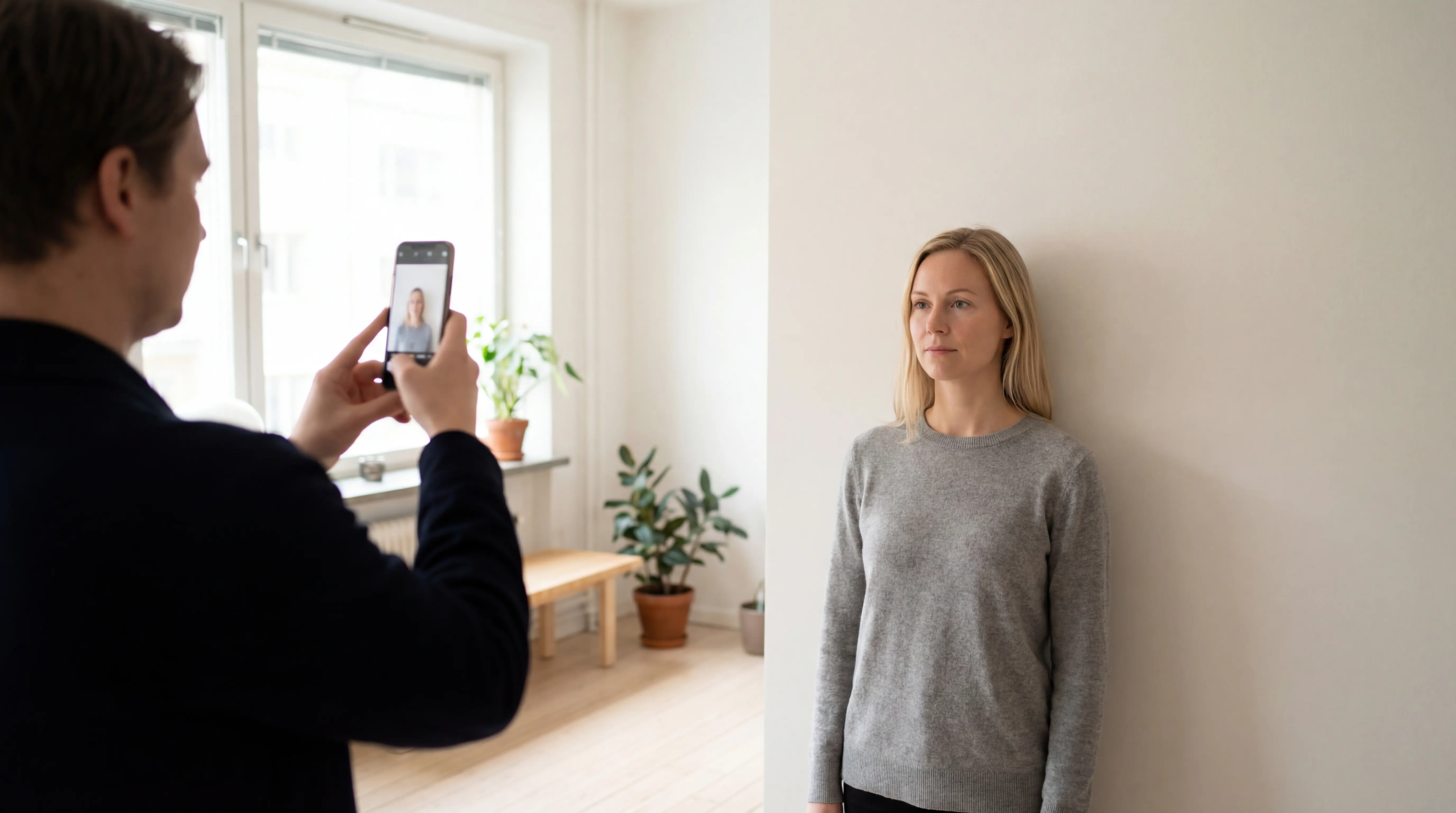
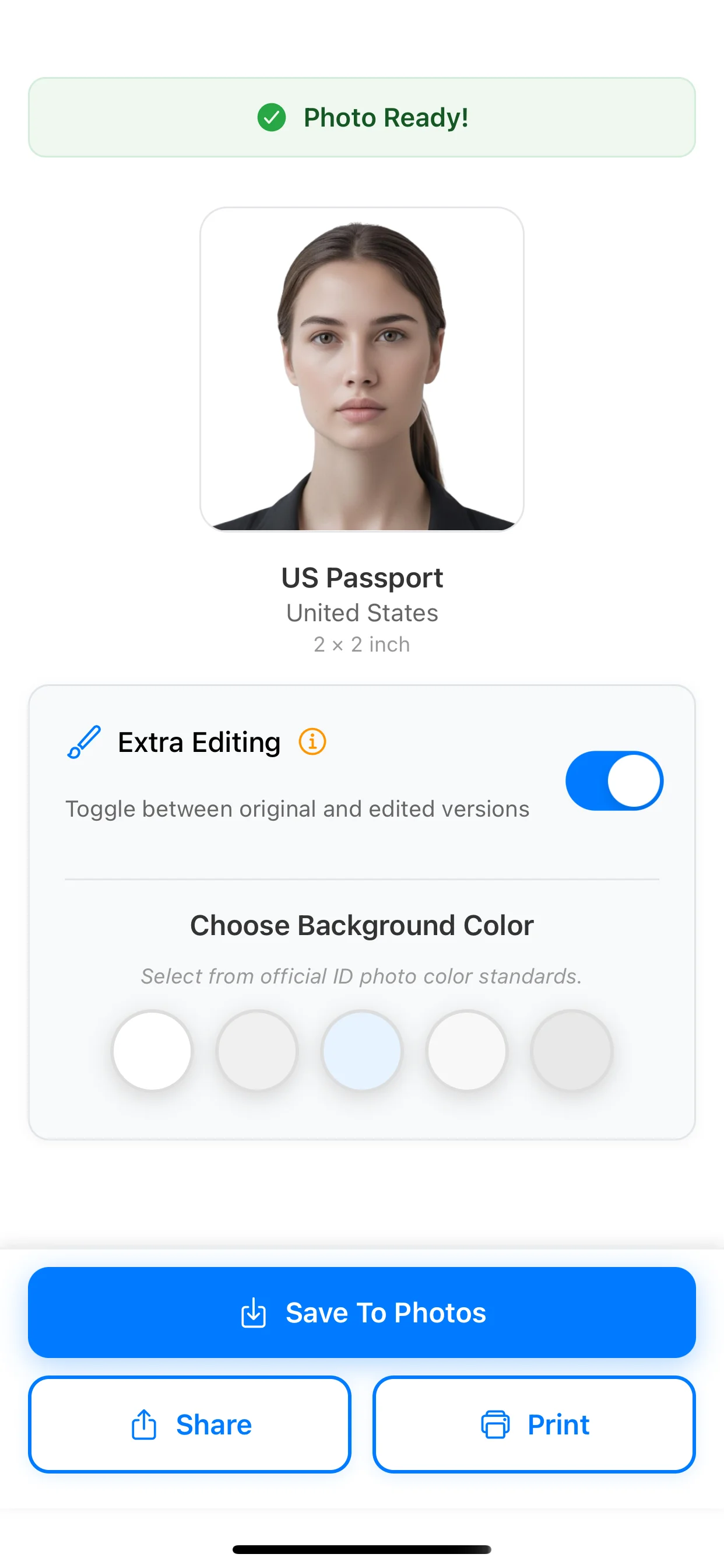
Choose the document preset in PhotoID, move away from the wall, and keep the phone near eye level with soft light from the front or side. The in-app camera keeps the capture inside the correct document flow while a better setup reduces head shadows and background problems.
U.S. passport and U.S. visa guidance both explicitly call for a plain white or off-white background. The U.S. passport page also says the background should be free from shadows, texture, and lines, which is a useful practical standard even when users are taking the photo at home.
Official sources
A background is judged by the final crop. A technically white surface can still fail if it creates shadows, visible texture, or artificial cutout edges.
| Setup | Use when | Main risk | Recommendation |
|---|---|---|---|
| Plain white or off-white wall | The wall is smooth, evenly lit, and has no visible frames, seams, or shadows. | Standing too close can create a dark head shadow. | Best default choice |
| White or off-white sheet | You do not have a clean wall, but can stretch or smooth the sheet behind the subject. | Wrinkles and fabric texture can show in the crop. | Good backup |
| Textured wall or door | Only if the texture is not visible in the final image, which is uncommon. | Lines, panels, and color variation make the background look busy. | Usually avoid |
| Edited or replaced background | Only as a last resort for non-official use; not the safest compliance path. | Cutout edges, artificial lighting, and official edit restrictions. | Retake instead |
The background should read as clean and quiet, not simply light in color. A plain wall, smooth sheet, or clean backdrop works better than a textured room surface.
Background color alone is not enough. Side light, overhead light, or standing too close to the wall can create dark shadows that make the image fail.
Even if the center behind the head looks fine, corners of the frame can still reveal clutter or lines that make the photo look improvised.
Cropping is one thing, but background replacement and heavier edits are a separate risk. The safest route is getting the background right before capture.
Background color is only one rejection risk. Use the app flow to check crop, lighting, clarity, and final output before printing or uploading.
Users often think “white wall” is enough, but most failures come from what appears on top of that wall: dark shadow behind the head, visible texture, a color cast from indoor bulbs, or a corner of the room entering the frame. Compliance depends on the final image, not on the wall color in isolation.
Cropping and formatting are one thing, but replacing the background after capture is a separate risk. Official U.S. guidance explicitly warns against changing the image with software, apps, filters, or AI, so the safer path is to retake the photo with a correct background rather than trying to manufacture one later.
Use the right preset, review the background in the real frame, run AI checks, and compare the final image against the destination rules.
Start with the destination format so the background check happens inside the right document flow.
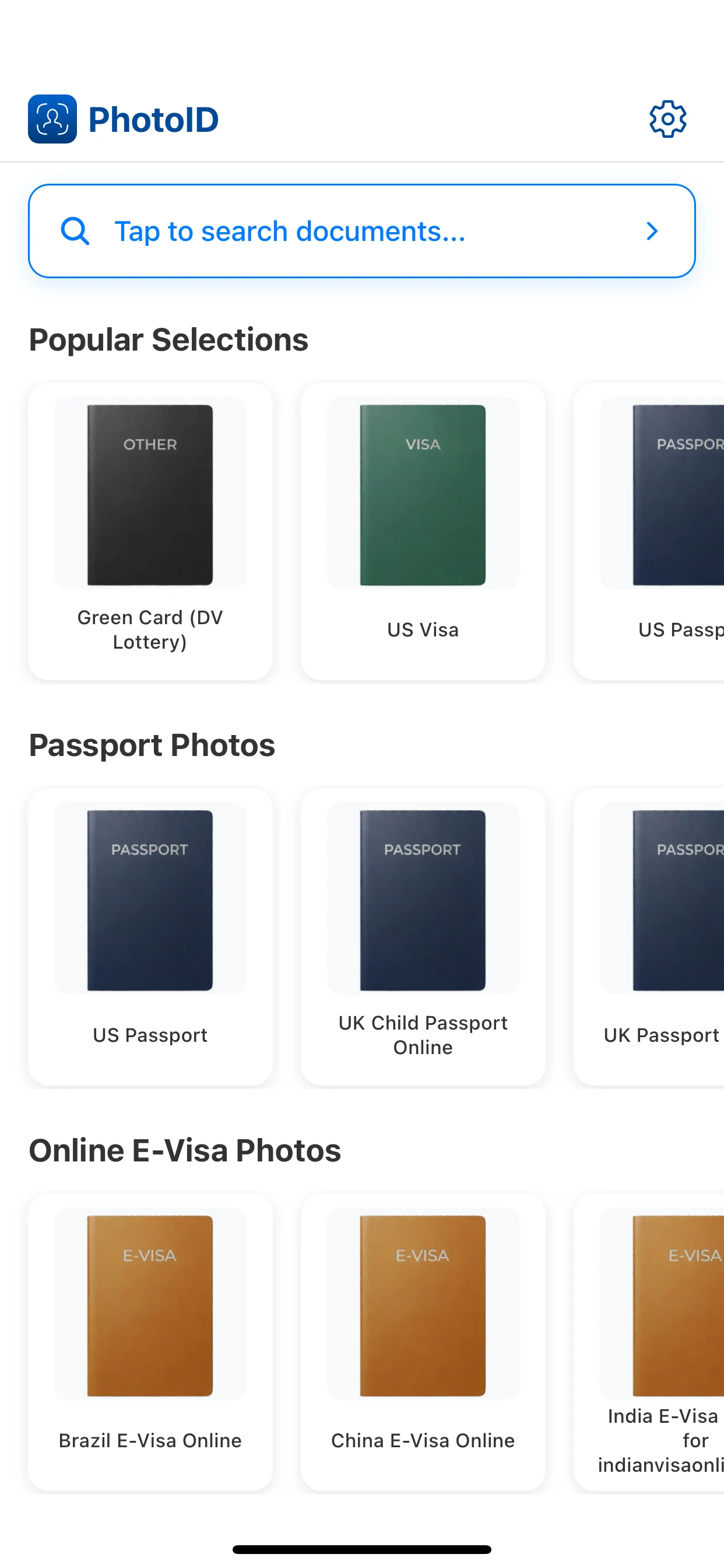
Check texture, wrinkles, and shadow before deciding the background is usable.
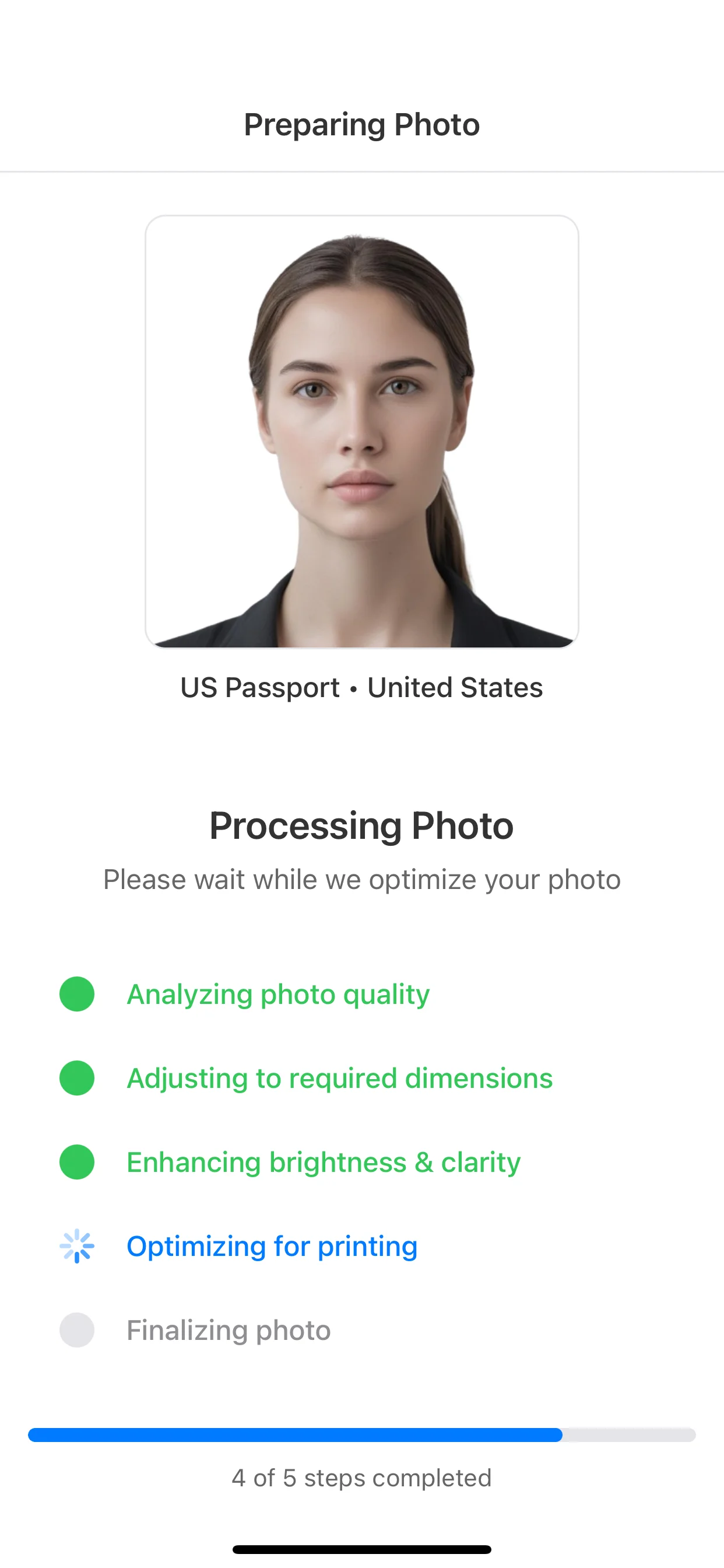
Use the review step to catch uneven lighting, background issues, and face-position problems together.
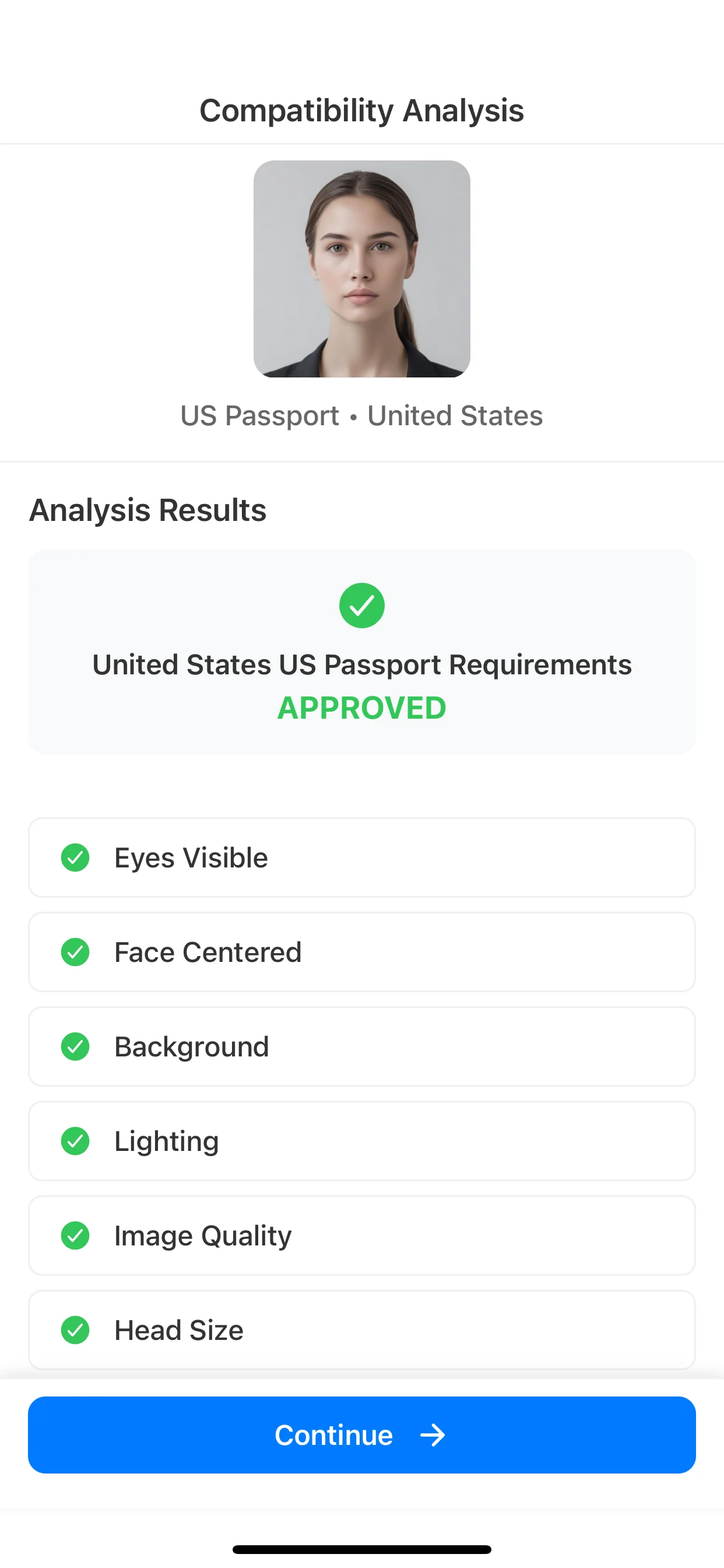
Use the final image for print or digital submission only after checking the destination requirements.
How to take a passport photo at home
Capture guide
Use this when your question expands from the background into the full home setup and camera position.
What to wear for a passport photo
Clothing guide
Open this if your next question is shirt color, outfit contrast, or what not to wear against a light background.
U.S. passport photo requirements
Money page
Use the full requirement page for exact U.S. passport size, attire, and rejection-risk details.
U.S. visa photo requirements
Money page
Open the visa page if you need digital-image rules in addition to the background requirement.
Green card photo requirements
Related flow
Useful when the background question is part of an immigration-style 2x2 photo workflow.
For many passport-style flows, especially U.S. passport and U.S. visa photos, the background should be plain white or off-white. The safest interpretation is a clean light background with no texture, lines, or shadows behind the face.
Yes. U.S. passport and visa guidance both accept white or off-white backgrounds. The important part is that the background stays plain, evenly lit, and free from visible texture or shadow.
Yes, if the sheet is plain, light, and smooth enough that folds, wrinkles, or texture do not show strongly in the final image. The background should look clean rather than improvised.
No. Strong shadows on the wall or behind the head are a common reason photos fail review because they make the background look uneven and can obscure the facial outline.
The safest approach is to capture the correct background in-camera. U.S. guidance explicitly warns against changing the photo with software, phone apps, filters, or AI, so you should not rely on digital background replacement as a compliance shortcut.
No. A textured wall, visible seam, door frame, or patterned backdrop can make the photo look non-compliant even if the color is light enough.
White or off-white is usually the safest option when the document follows U.S.-style rules. If the document is for another country or another ID system, confirm the exact background rule before submission.
Stand a little away from the wall, use soft front lighting, remove clutter, and check the final frame for shadows, texture, and color cast before you keep the shot.
Choose the right preset, run AI checks, and prepare a result for online submission or print-ready output.
Available on iOS and Android